


Clear the work surface first
Move loose accessories and documents before cleaning so dust and debris can be removed without pushing them into ports, joints, or moving components.


Enter keywords to explore workspace solutions.
Product Care
Thoughtful product care can help a workspace stay cleaner, more comfortable, and easier to use. This guide covers practical care for desks, seating, screens, input devices, cable systems, charging products, lighting, and everyday workspace accessories.

Use soft materials and product-appropriate cleaning methods instead of harsh scrubbing or aggressive chemicals.
Check fasteners, joints, cables, moving parts, and contact points before small issues become larger ones.
Disconnect power before cleaning powered products and keep excess moisture away from ports and openings.
When a manufacturer provides specific care instructions, use those instructions as the first reference.
Move loose accessories and documents before cleaning so dust and debris can be removed without pushing them into ports, joints, or moving components.
Begin with a dry or lightly damp soft cloth where appropriate, and avoid strong solvents unless the product instructions specifically allow them.
Look over chair mechanisms, desk frames, monitor arms, clamps, hinges, cable trays, and other adjustable parts for looseness or unusual movement.
Make sure cords are not sharply bent, crushed, stretched, or trapped around moving furniture and that connectors remain secure.
Return products to their working positions with the main surface clear, cables routed cleanly, and frequently used items within easy reach.

Desk & Seating Care
Desks, ergonomic chairs, and active stools combine surfaces with structural or moving components. Keep both areas in mind: clean what you touch and inspect the parts that support movement and adjustment.
Screen & Device Care
Monitor arms and laptop stands are mostly structural, but the devices they support need gentler care. Before cleaning powered electronics, disconnect power where practical and follow the device manufacturer’s instructions.


Keyboard & Mouse Care
Keyboards and mice collect dust and oils because they are touched constantly. Regular light cleaning is usually more effective than waiting for buildup to become difficult to remove.
Disconnect the keyboard when appropriate, remove loose dust carefully, and avoid allowing cleaning liquid to run between keys.
Wipe the outer key surfaces and case gently, then allow them to dry fully before reconnecting or using the device.
Wipe the shell and keep the underside, feet, and sensor area free from dust that can affect smooth movement.
Keep charging ports and connectors dry and free of debris, and avoid stressing cables while devices are charging.
Power & Organization Care
Cable management, charging stations, organizers, trays, and file holders work best when they remain easy to access. Care is not only about cleaning—it is also about preventing tight bends, overloaded storage, and unnecessary strain on connectors.
Route cords with gentle curves and leave enough movement around adjustable desks, monitor arms, and frequently handled devices.
Keep ventilation areas and connectors clear and place charging products where cables are not repeatedly pulled or crushed.
Empty and wipe storage areas periodically so dust, small debris, and excess items do not accumulate unnoticed.
Avoid overfilling lightweight holders and redistribute heavy documents when the structure begins to flex or lean.
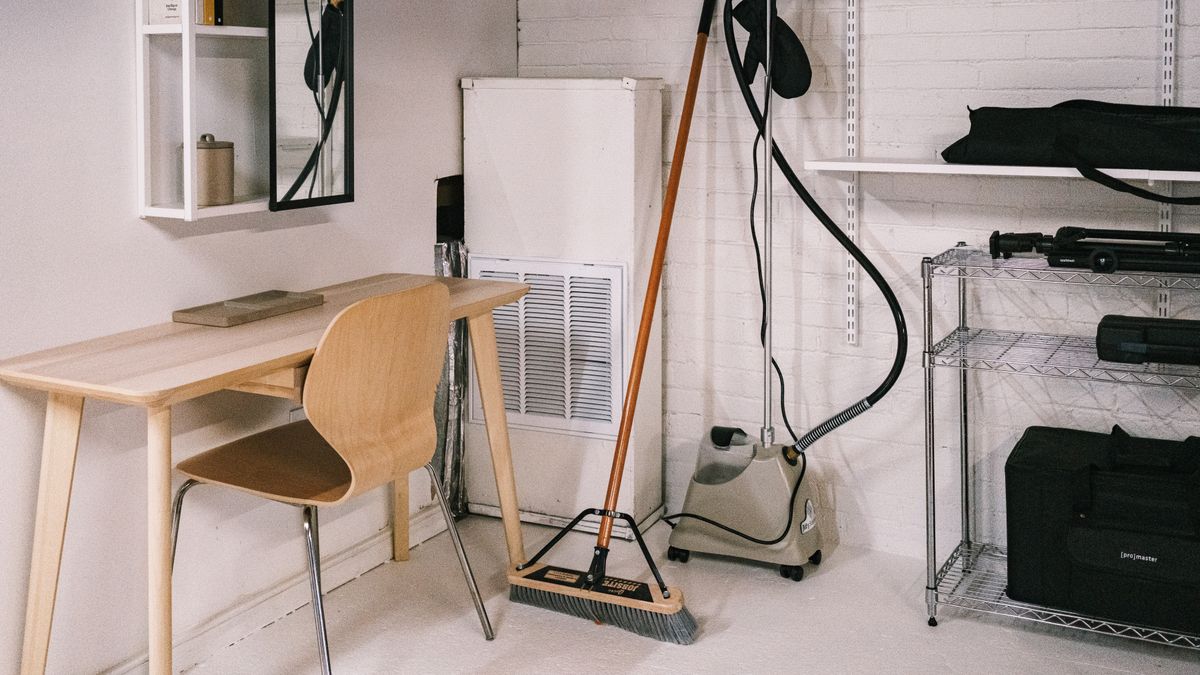
Fabric, foam, coated surfaces, plastics, metals, and electronic components may require different care. Check any included product instructions before using cleaners, stain treatments, or moisture.
Comfort, Lighting & Privacy
Footrests, seat cushions, task lights, and privacy panels may not need attention as often as keyboards or desktops, but occasional cleaning and inspection helps keep the full workspace looking considered.
Care Basics
Product care is easier when it becomes part of the workspace routine. These habits apply across most categories and help keep maintenance simple.
Light, regular cleaning is generally easier on surfaces and devices than waiting for dust, oils, or debris to accumulate heavily.
If a desk, chair, arm, stand, or accessory feels unusually loose or resistant, inspect the mechanism and mounting points before forcing movement.
For powered products and electronics, disconnect power when appropriate and never allow cleaning liquid to enter ports, controls, vents, or electrical openings.
Product Care Directory
Always use the instructions supplied with a specific product when they differ from general care guidance.
Need Product Help?
If you have a question about a product, an order, delivery, a return, or an exchange, Alignora support is available around the clock.