


Start With the Desk
Give your arms, devices, and everyday tools enough room without forcing the keyboard, mouse, or screen into awkward positions.


Enter keywords to explore workspace solutions.
Ergonomic Guides
Build a workspace around better positioning, easier movement, clearer organization, and everyday comfort. These guides help you think through screens, seating, input devices, desk height, lighting, and the small adjustments that shape the way a setup feels.
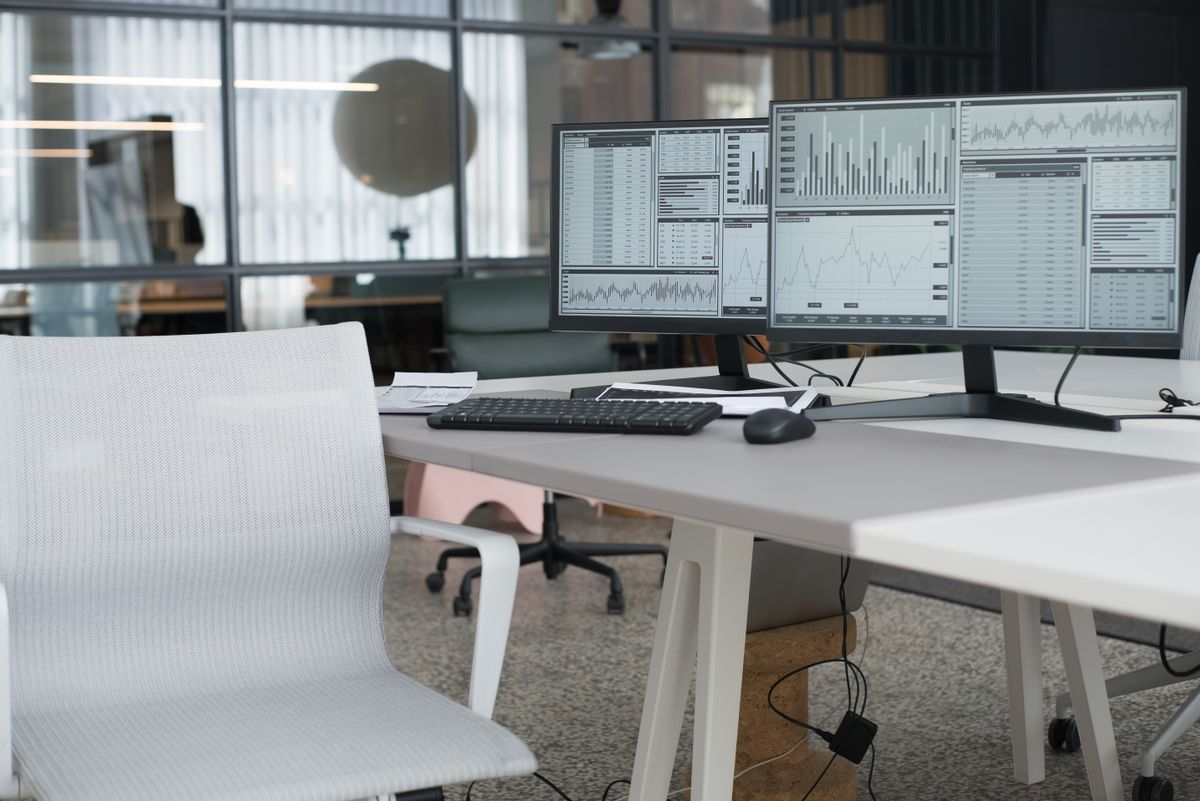
Start with a working height that lets the setup feel natural and uncluttered.
Position monitors and laptops so viewing feels comfortable and adaptable.
Keep keyboards and mice within an easy, relaxed working zone.
Use seating, foot support, and cushions to create a stable working position.
Finish the environment with useful light, privacy, and clearer visual organization.
Ergonomic Foundations
Ergonomic products are most useful when they solve a specific setup problem. Begin with the way you sit or stand, where your eyes naturally fall, how your hands reach the keyboard and mouse, and whether your feet feel supported.
Give your arms, devices, and everyday tools enough room without forcing the keyboard, mouse, or screen into awkward positions.
Adjust the display instead of leaning toward it. Monitor arms and laptop stands can make screen height and distance easier to refine.
Place the keyboard and mouse where the shoulders can stay relaxed and the arms do not need to reach forward unnecessarily.
Use chair adjustment, foot support, and seating accessories to create a stable base before refining the upper workspace.

Screen Position Guide
The screen should support a comfortable viewing position rather than encourage you to lean, twist, or hold your head in one fixed angle. Treat these points as practical starting references and adjust them to your own comfort.
Keyboard & Mouse Guide
Keyboard and mouse placement affects how the shoulders, arms, hands, and wrists settle into the workday. The goal is a compact working zone that does not require unnecessary reaching.


Seating Support Guide
Chair adjustment affects everything above the desk. Before changing the screen or keyboard, make sure the seat, back support, and feet create a position that feels stable and easy to maintain.
Adjust the seat so the legs feel supported and the feet can rest securely rather than hanging or stretching.
Let the chair support the torso instead of sitting forward for long periods without contact.
A footrest can help create a more stable lower-body position when the desk and chair heights do not align comfortably.
Use sitting, standing, and short movement breaks as different working positions rather than relying on one posture continuously.
Focus & Lighting
A well-positioned workstation can still feel difficult to use if the surrounding light, privacy, cables, and visual clutter are working against it. Treat the environment around the desk as part of the ergonomic setup.
Position a task light so it supports the desk surface without creating distracting glare on the display.
Cable management, charging stations, organizers, and file holders can make the working area easier to scan and use.
Privacy panels can help define the working zone in shared or visually busy environments.
Place daily essentials inside the main working area and move less-used items farther away.
A useful ergonomic setup should make everyday movements feel simpler. If an item repeatedly causes reaching, leaning, twisting, or awkward repositioning, consider adjusting its location before adding another product.
Quick Setup Rules
Ergonomics does not need to feel complicated. Use these practical checks as a quick way to review the setup and identify which area may need attention first.
If the arms are reaching upward or forward for long periods, reconsider the chair, desk, keyboard, or mouse position.
Adjust screen height and distance before changing your body position to accommodate the display.
Use the floor or a footrest to create a stable base rather than letting the lower body hang unsupported.
Keyboard and mouse controls should sit within a compact working area that does not require repeated reaching.
A strong setup allows small position changes throughout the day instead of locking the body into one fixed posture.
Change the chair, screen, input devices, or desk position individually so you can tell which adjustment actually improves the setup.
Products That Support the Guide
Start with the area that needs improvement, then choose the product category that addresses it. The goal is not to add everything at once, but to create a workspace that feels progressively more natural and organized.
Need Workspace Guidance?
If you need help comparing workspace products, reviewing an order, or understanding which category may better fit your setup, Alignora support is available 24/7.